
Parameters & Features
For versions released in 2026 and later
EA Manual (MQL5 Market Edition)
Common usage and parameter guide for AT_SYSTEM EAs
Contents
Introduction
This manual explains the usage, parameters, and other features common to the EAs I provide.
Descriptions and screenshots are from MT5. MT4 versions are the same unless noted otherwise.
Features and parameters may be present or named differently depending on the EA and version. Please skip any item that your EA does not have.
Setting Up the EA
- Drag and drop the EA onto a chart of any FX currency pair.
- The chart automatically switches to the EA's currency pair and timeframe
(Auto Chart Setup). - The candlestick colors change, and the parameter settings appear on the right side.
(Details are explained later. Otherwise, the setup is the same as for any other EA.)
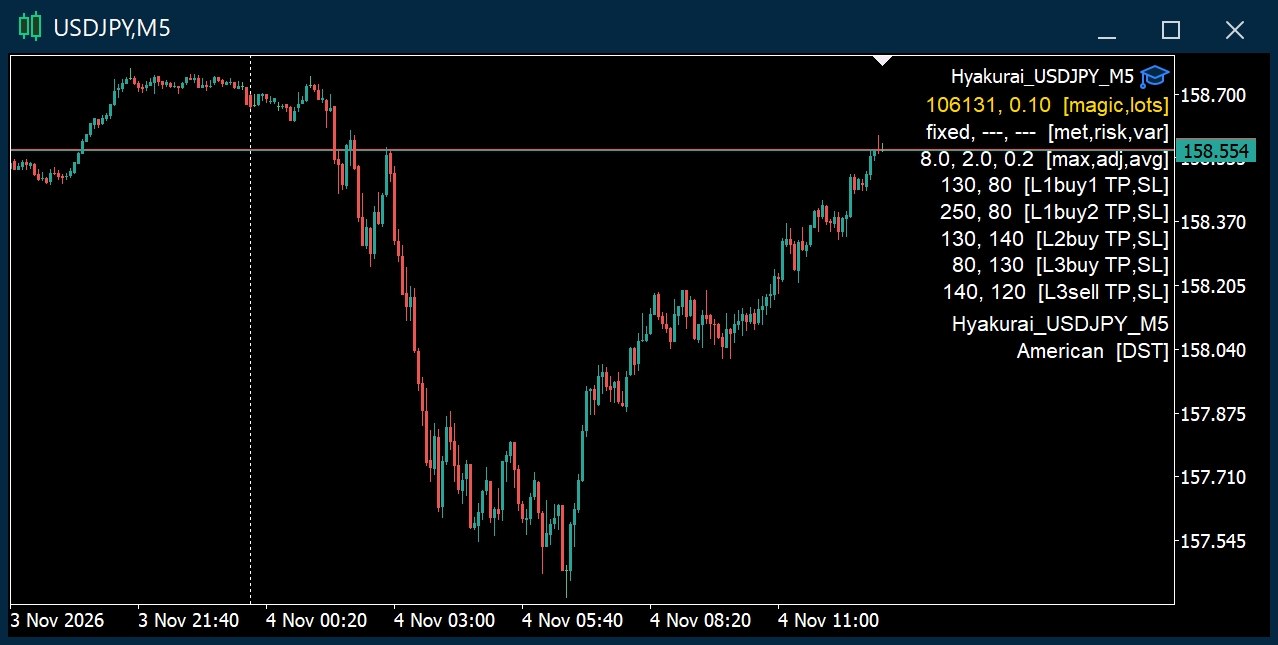
You can also confirm that the EA was set up from the log in the “Experts” tab of the Toolbox.
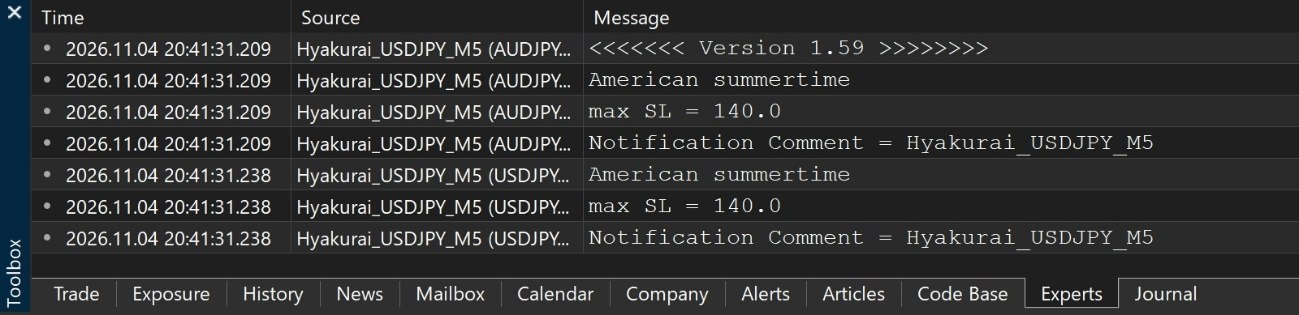
A brief specification is shown in the “Common” tab when you attach the EA (the “About” tab in MT4). Set the number of bars loaded on the chart to at least the number stated there.
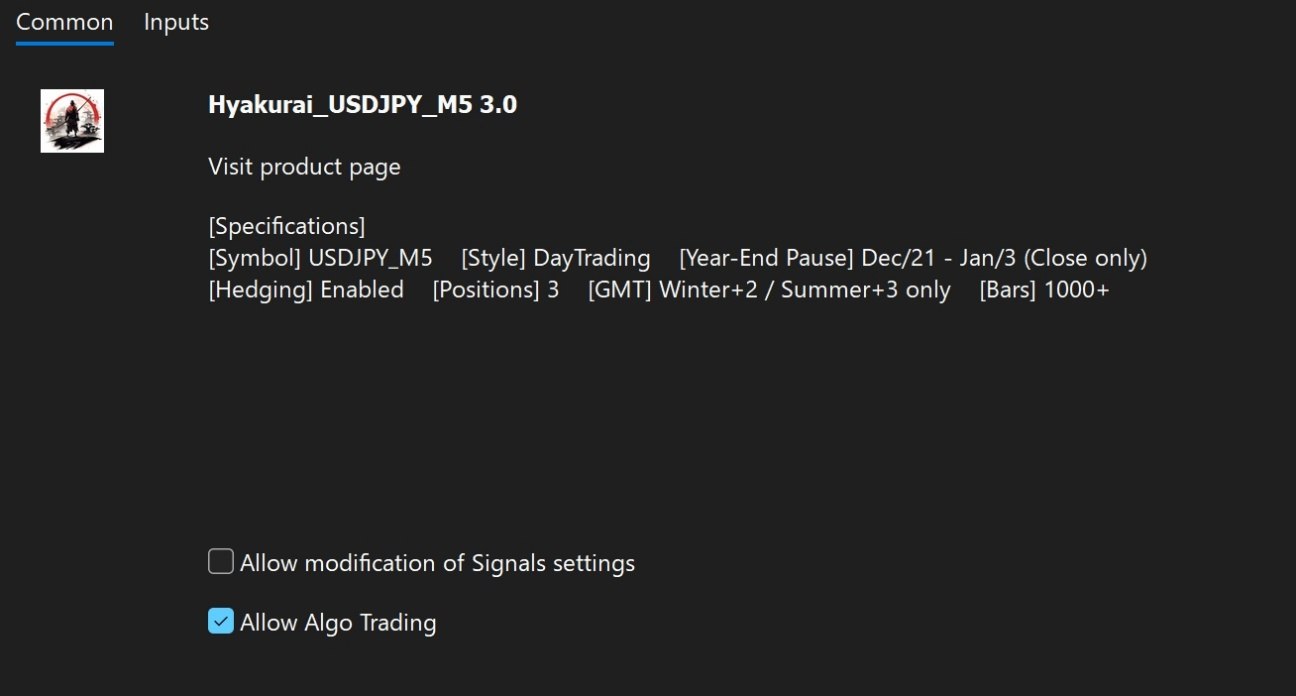
Parameters and Chart Comment
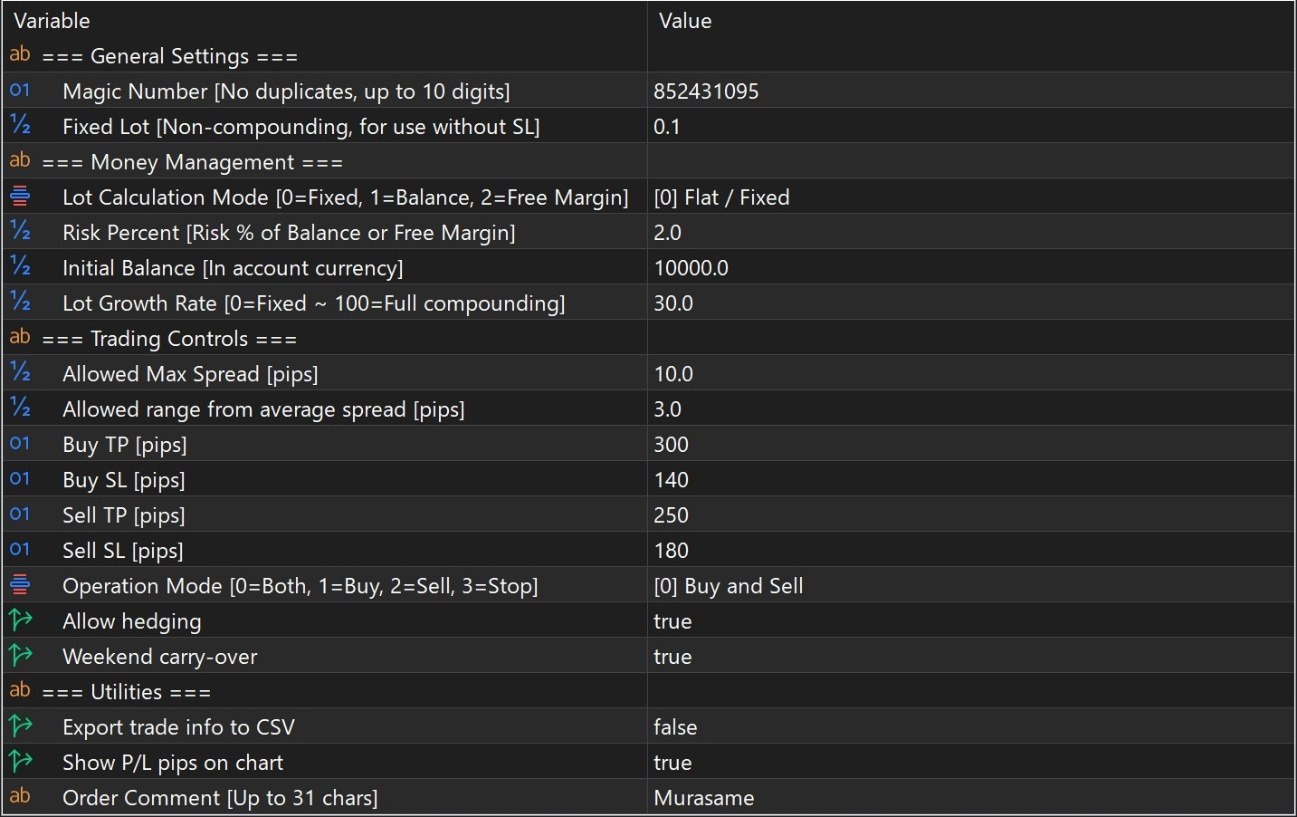
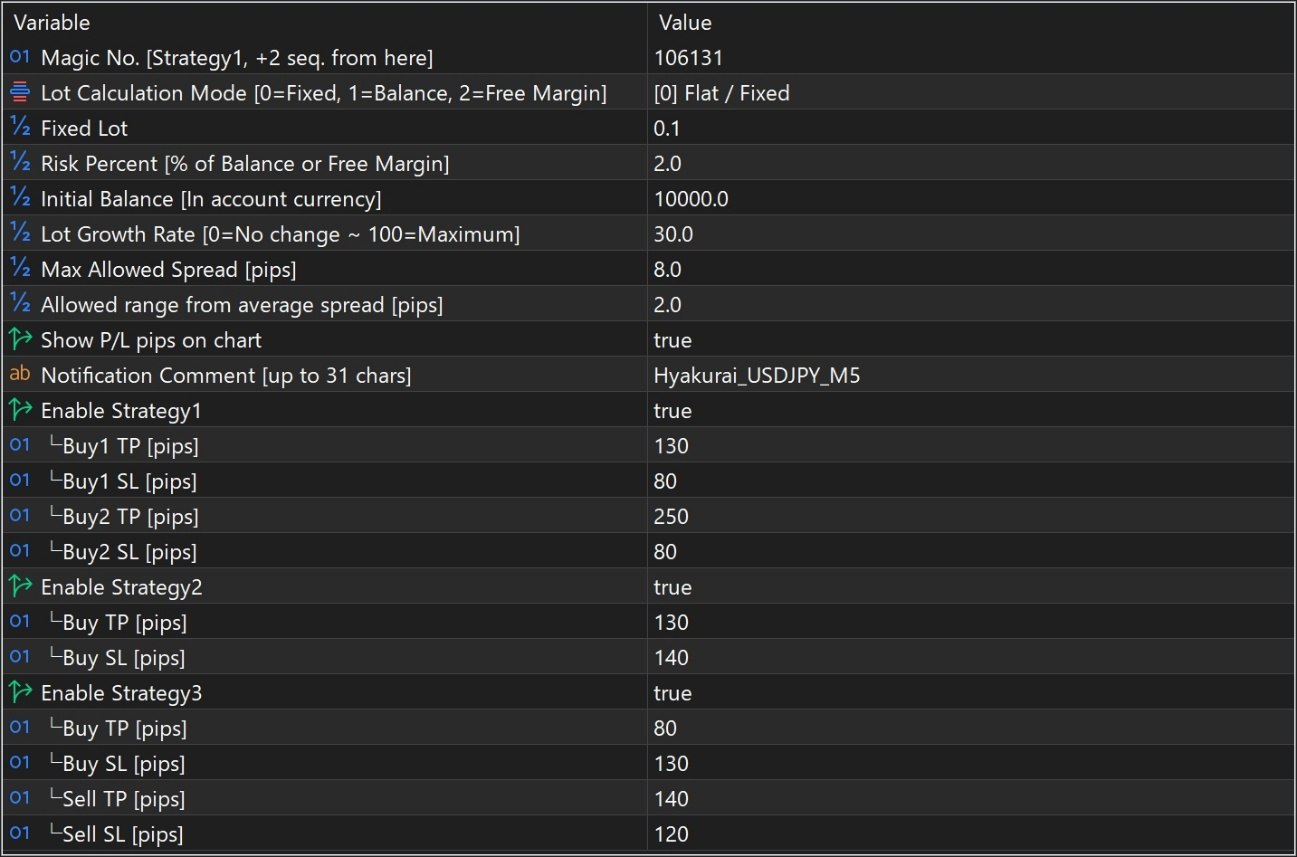
Each block is explained below.
Items in [ ] are shown in the chart comment.
1. Basic Settings and Compounding Settings
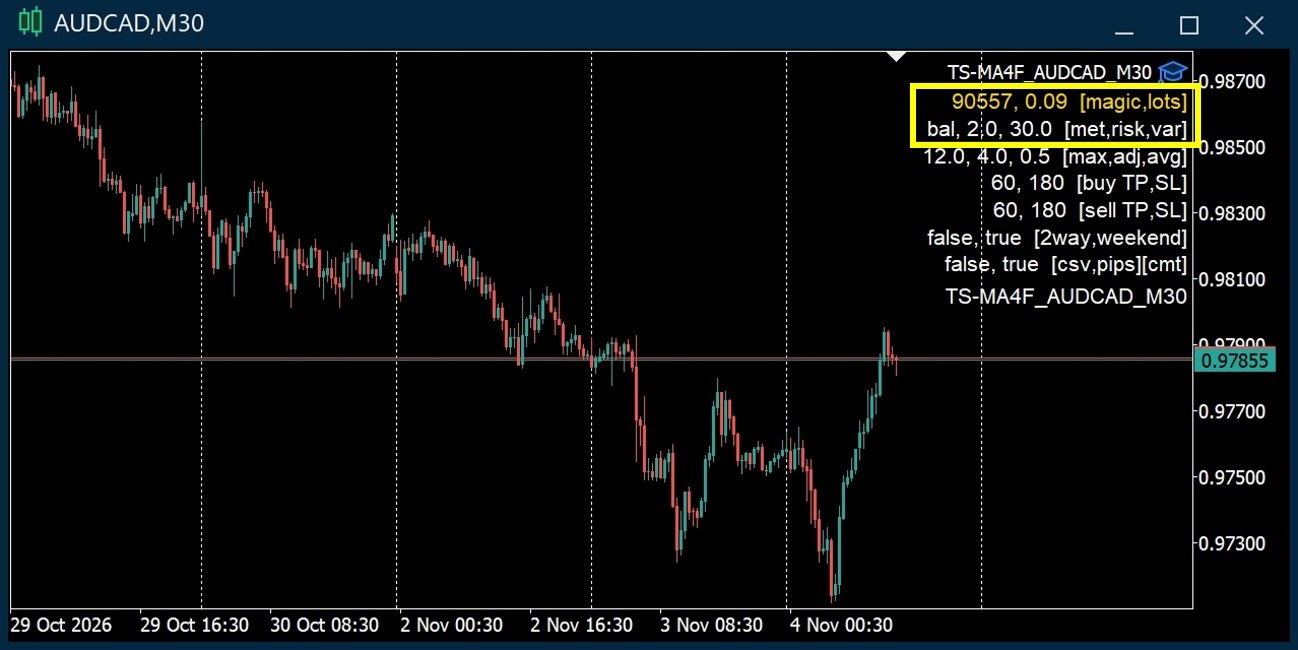
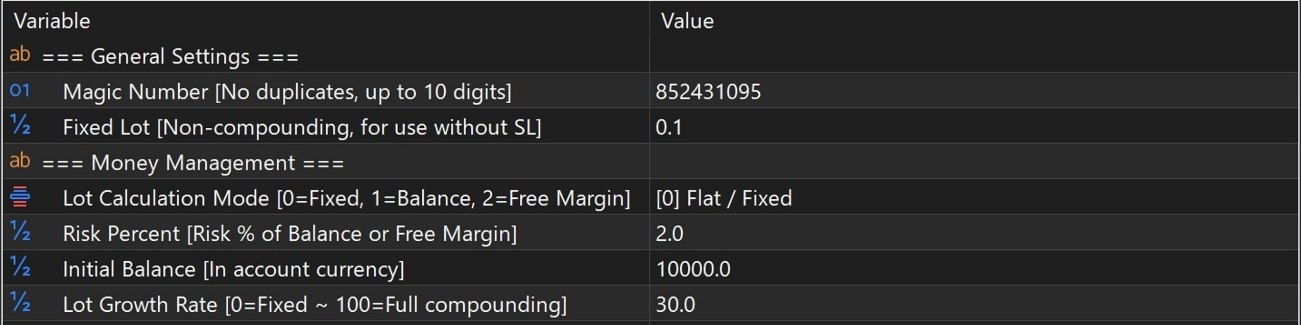
| Parameter | Description |
|---|---|
| Magic Number [magic] | The EA's identification number. Use a different value for each EA. If it duplicates another EA's number, the EAs will malfunction. |
| Fixed Lot [lots] | The lot size for fixed-lot trading. It is also used when compounding is selected but there is no SL. |
| Lot Calculation Mode [met] | Compounding setting. 0 = Fixed, 1 = Compounding (Balance), 2 = Compounding (Free Margin) |
| Risk Percent [risk] | Risk setting for compounding. The maximum SL loss as a percentage of the selected basis (balance or free margin). |
| Initial Balance | The balance at which compounding starts, in your account currency. It is not shown in the chart comment. |
| Lot Growth Rate [ver] | Sets how much changes in funds are reflected in the lot size, from 0 to 100. It softens sudden lot changes caused by sharp changes in funds. |
Differences between compounding modes
- Balance: A calculation method in which the lot size changes little with free-margin fluctuations, even when trades from several EAs overlap. However, free margin may become low.
- Free Margin: When trades from several EAs overlap and free margin changes significantly, the lot calculation is affected. On the other hand, it can still be used appropriately even when free margin is low.
Initial Balance is referenced no matter how many years after you start. Even if the EA stops (for example, after a terminal restart), the lot size can be recalculated under the same conditions.
In backtests, compounding is calculated assuming 1 USD = 150 JPY. Lot sizes may therefore differ from live trading.
If the lot stays at the Fixed Lot value even though compounding is selected, check the Experts tab and add the currency pairs needed for the calculation to Market Watch. The calculation may then work.
Example: When trading AUDCAD on an account in Japanese yen, compounding cannot be calculated unless USDCAD is shown in Market Watch, and the lot stays at the Fixed Lot value.
Compounding formula
Compounded lot = Risk amount ÷ SL loss per 1 lot
Risk amount = Base balance × Risk rate (Risk Percent)
Base balance = Initial balance (Initial Balance) + (Current funds − Initial balance) × Lot growth rate (Lot Growth Rate)
Current funds = Current balance + credit, or current free margin
Example: USDJPY, Lot Calculation Mode = Free Margin, Risk Percent 5%, Initial Balance ¥700,000, current funds ¥1,000,000, Lot Growth Rate 30%, SL 210 pips
{¥700,000 + (¥1,000,000 − ¥700,000) × 30%} × 5% ÷ ¥210,000 ≈ 0.188 → 0.18 lots (rounded down to the lot step)
If the calculated lot is below the broker's minimum lot, the minimum lot is used. In that case, the risk becomes larger than set.
2. Filters and Trade Controls
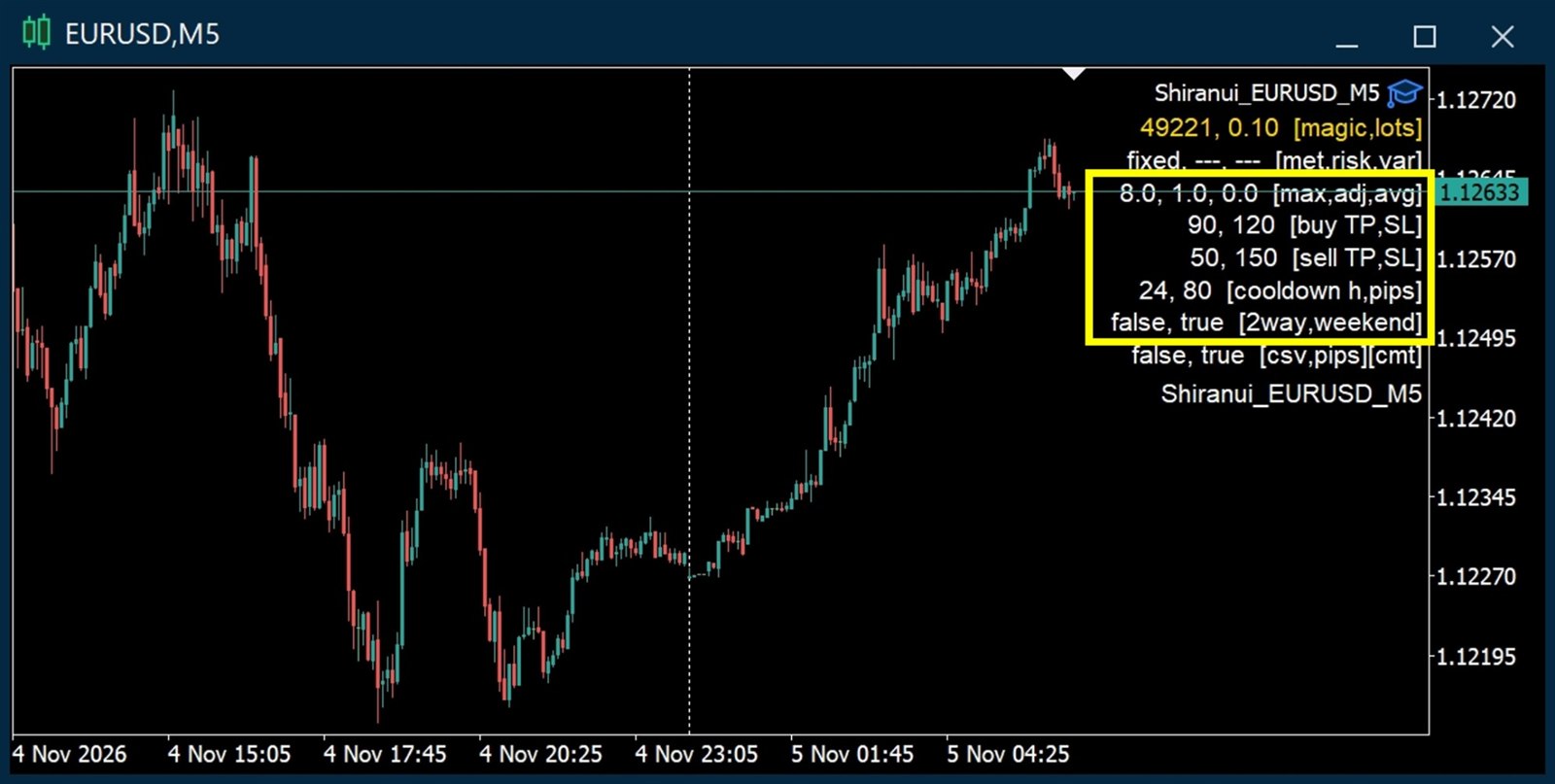
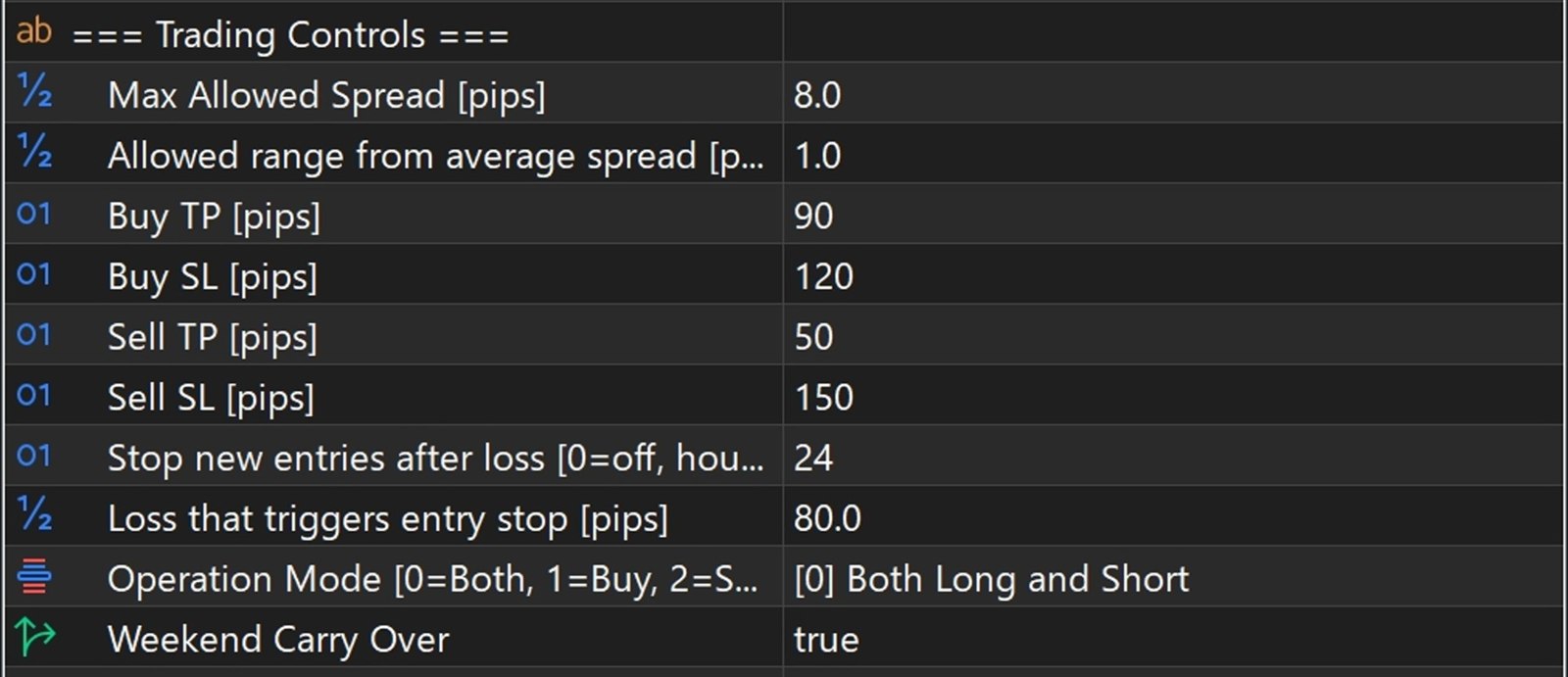
| Parameter | Description |
|---|---|
| Allowed Max Spread [max] | The upper limit of the spread (pips) at which trading is allowed. In the figure, this is the 8 at the upper left inside the frame. |
| Allowed range from average spread [adj] | The pips added to the average spread measured internally (shown as [avg] in the chart comment). If the spread exceeds “average + this value,” the EA skips trading. As the average moves up and down, the allowed spread also moves gradually. Allowed Max Spread sets its upper limit. |
| Buy / Sell TP and SL [Buy TP,SL / Sell TP,SL] | On EAs where TP and SL can be changed, they appear in the parameters list. The unit is pips in principle (1 pip = 10 points). |
| Stop new entries after loss Loss that triggers entry stop [cooldown h,pips] | Only on EAs that include it. When a single close results in a loss of Loss that triggers entry stop (pips) or more, new entries are prohibited for Stop new entries after loss (hours). Setting the hours to 0 disables it. See Built-in Support Features, item 5 for details. |
| Operation Mode | Switch between buy only, sell only, both, or both stopped in the parameters. This works the same way in MT5. For a side that is not active, the TP and SL are dimmed. |
| Allow hedging [2way] | true: hedging allowed; false: hedging not allowed. Default values differ by EA. As a rule, this switch is provided as standard so you can change it when a broker prohibits hedging. |
| Weekend carry-over [weekend] | true: positions are carried over the weekend; false: they are not. Default values differ by EA. If false, any open position is closed at 23:00 on Friday. |
| Triple swap stop control [3xSwapTrade] | Only on EAs that include it. The EA automatically detects the day with triple swap and skips entries from shortly before that day rolls over. The timing of the skip differs by EA. |
| Summertime [DST] | Only on EAs affected by daylight saving time. The EA detects it automatically and an item is added to the chart comment. none: none | American: US style | European: European/UK style |
3. Utilities
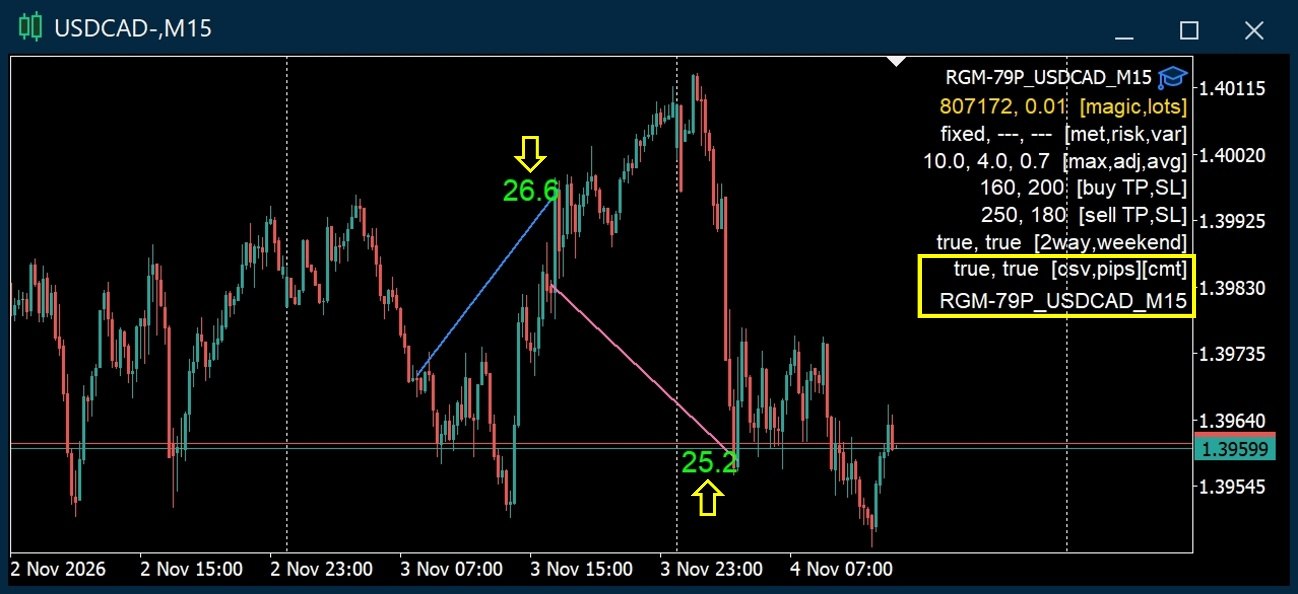

| Parameter | Description |
|---|---|
| Export trade info to CSV [csv] | Writes the following to a CSV file for each entry, exit, TP/SL, and order failure: spread, gap, slippage, latency, floating profit/loss, swap, and more. Details are given later. |
| Show P/L pips on chart [pips] | Using the trade history in the terminal, shows lines from entry to exit and the pips gained on the chart. |
| Order Comment [cmt] | The text you enter is shown in the comment field of orders. Text over 31 characters is automatically cut from the end. Even if the comment is lost, the internal default comment is shown. |
4. Parameters for Each Buy/Sell Strategy
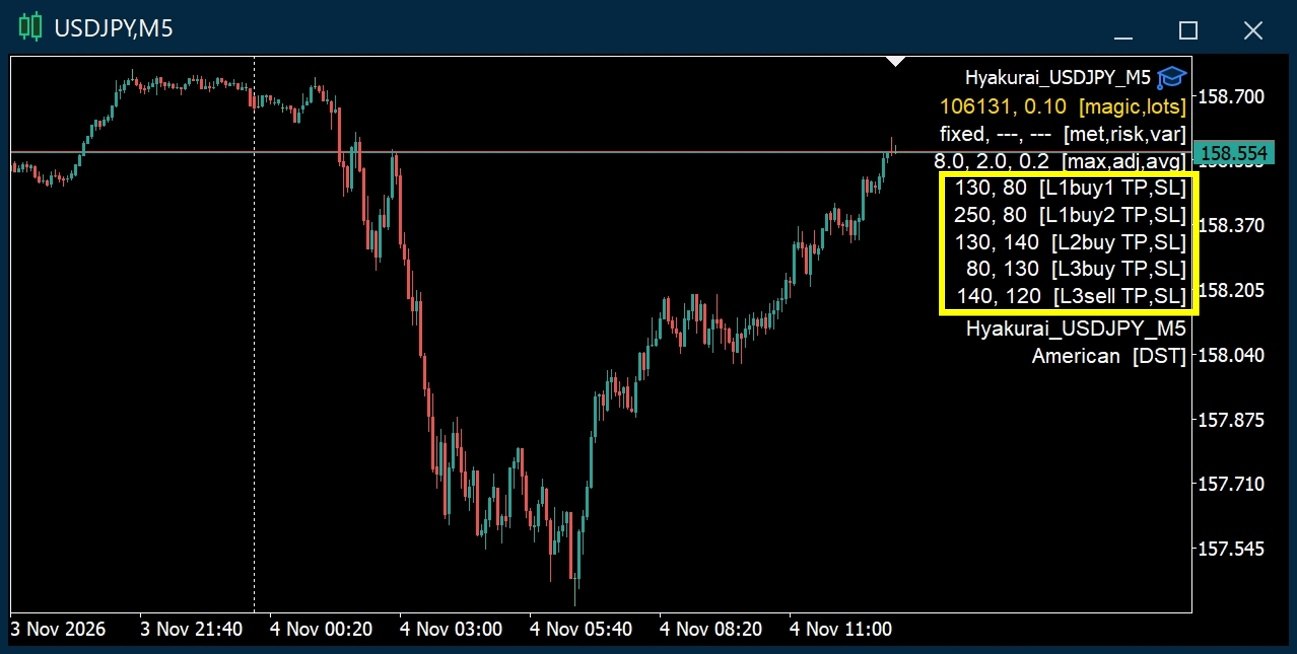
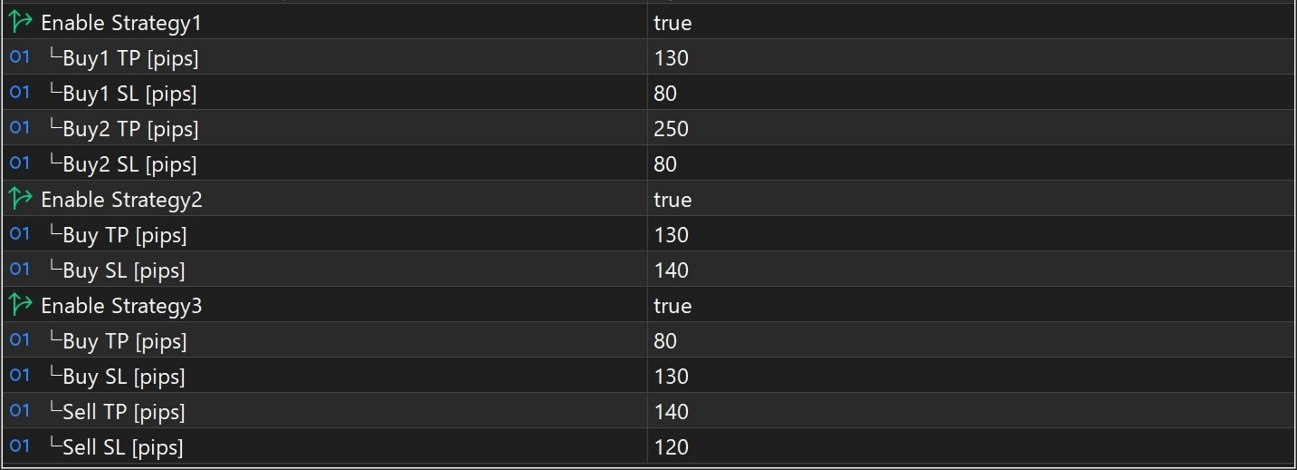
| Parameter | Description |
|---|---|
| Enable Strategy1~ | Active: true / Inactive: false |
| TP [pips] | You can change the maximum TP. On some EAs, the value varies depending on conditions. |
| SL [pips] | The maximum SL. On some EAs, the value varies depending on conditions. It is used for the compounding calculation. If a strategy has several SLs, the calculation uses the maximum among the active strategies. The maximum is shown in the Experts tab at initialization, right after the EA is attached. |
Built-in Support Features
To prevent unnecessary losses from human error, the EA includes various support features that make operating mistakes less likely. For verification support, it also keeps the functions I used during development, such as detailed trade output and trade history display on the chart.
1. Auto Chart Setup
When you drag and drop the EA onto an FX chart, the chart automatically switches to the correct currency pair and timeframe, and the parameter settings appear on the right. The colors of the bars and other elements also change.
For non-FX symbols (crypto, indices, etc.), the characters after the symbol name differ by broker. Therefore, open the chart with the correct symbol and timeframe yourself before attaching the EA.
2. Chart Comment
Brief information such as the parameters is laid out on the right side of the chart for easy reading. The “magic number” and “lot size,” which can cause accidents if wrong, are shown larger and in a different color.
The comment is compact so that it stays visible even when you shrink the chart and place several side by side, with high-priority items at the top. When the order comment is long, the font becomes smaller. The font is the default one to avoid garbled characters.
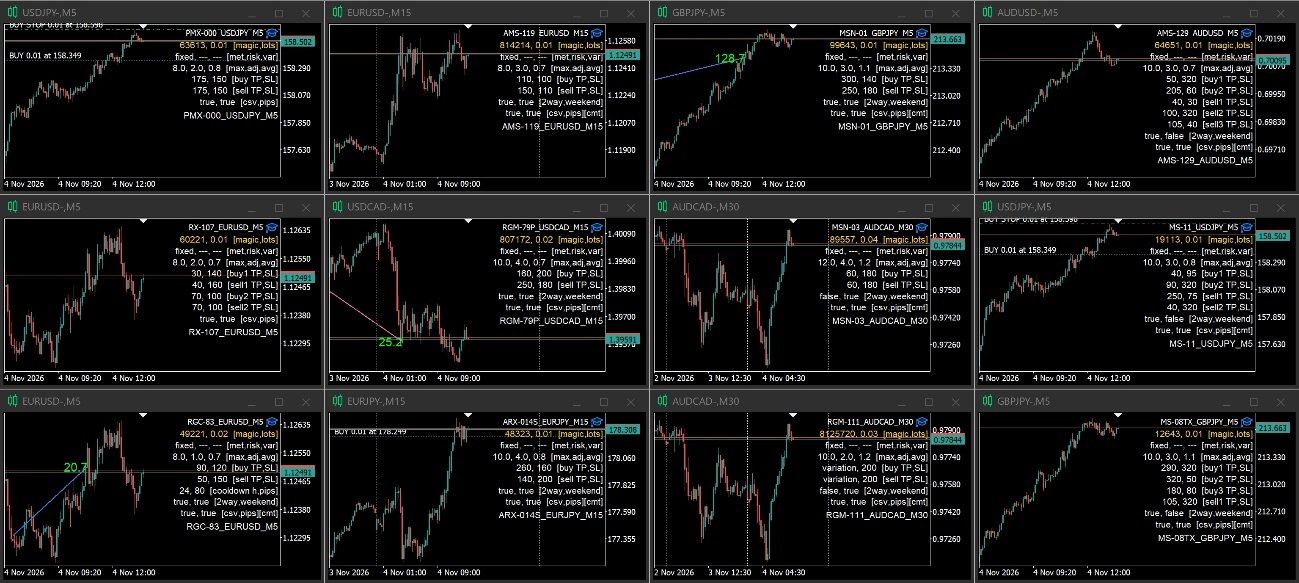
3. Chart Changes on Errors and Other States
When the EA cannot operate, the chart display changes according to the situation so you can tell at a glance. If the EA becomes inactive, for example because of a lost connection, everything except the magic number and lot size is dimmed.
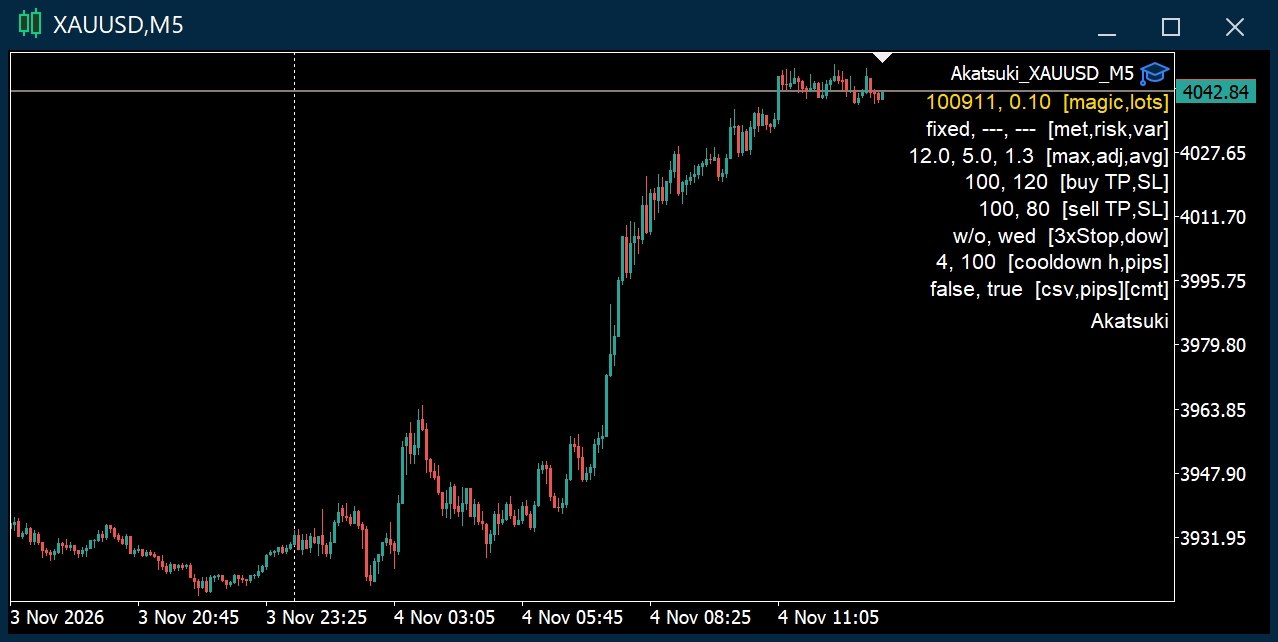
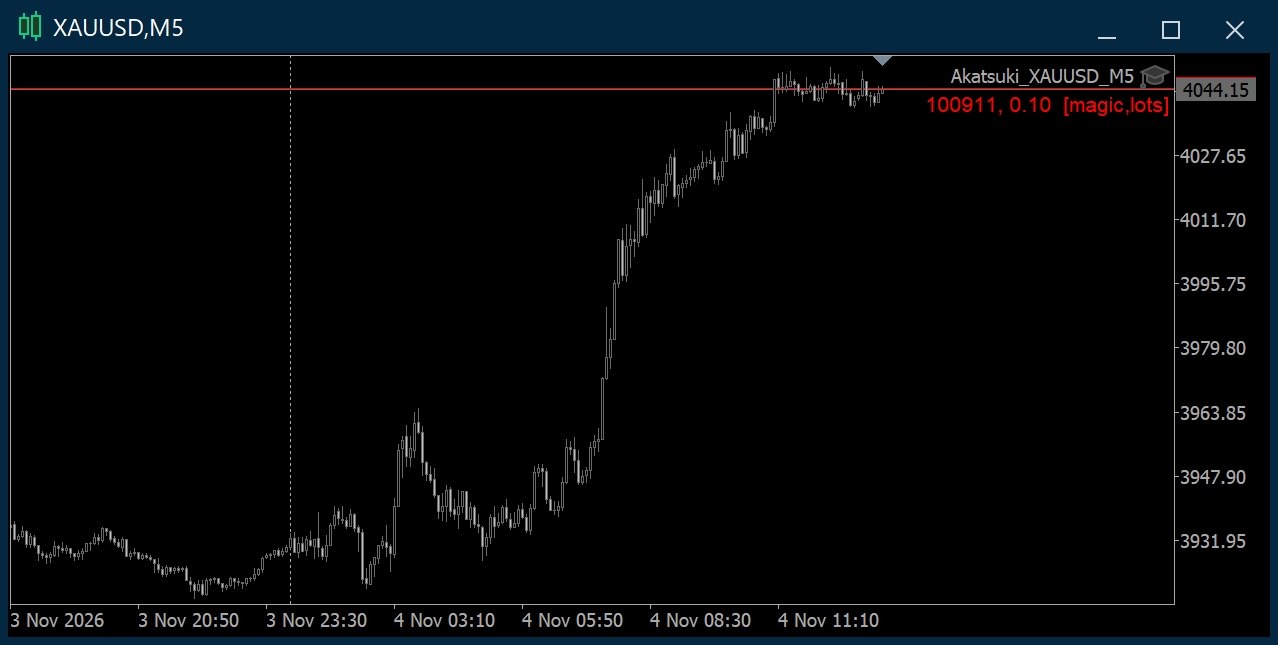
If the EA is removed, for example by a terminal update, the comment may remain with the EA name at the upper right blank. Because nothing is dimmed, it is easy to mistake for normal operation, so please be careful.
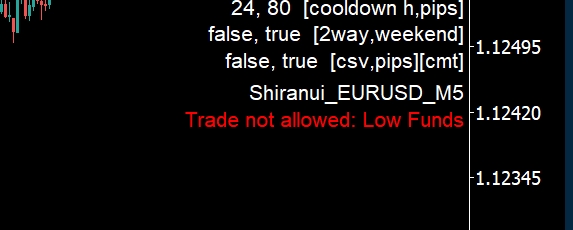
4. Low Funds Check
A check for insufficient margin has long been built in as standard. However, the EA could still enter with funds that could not withstand even a small floating loss, despite plenty of room before the SL.
So if the funds cannot withstand a single SL, the EA skips new entries and shows a warning. When this warning appears, check your funds and lot size.
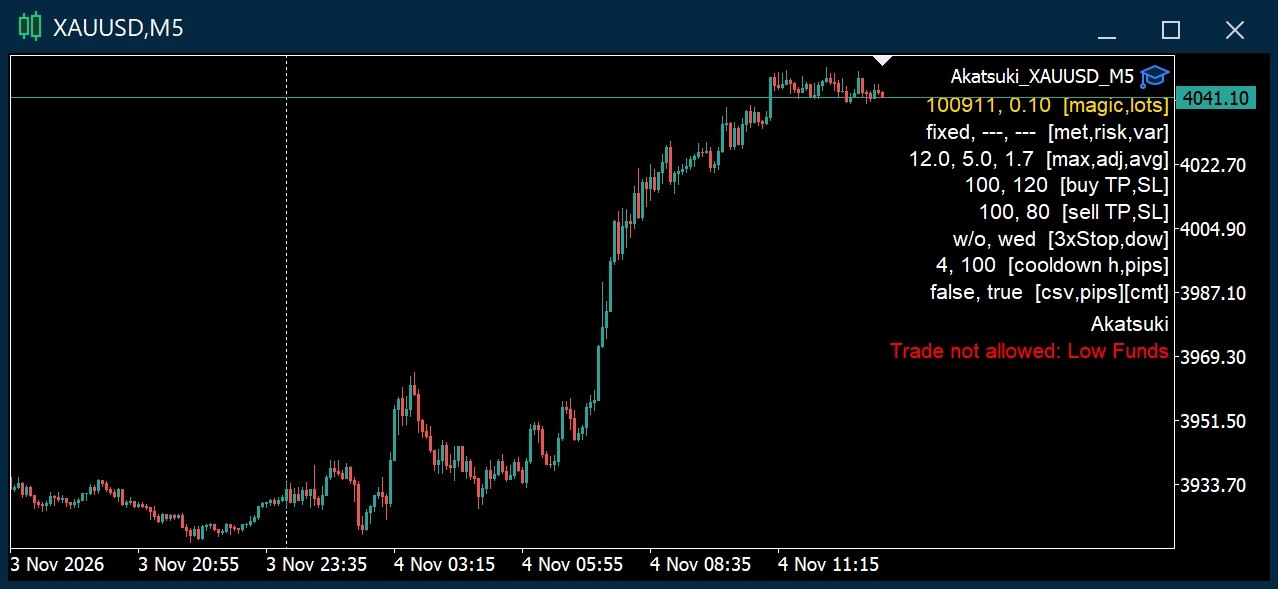
5. Cooldown
This feature is available only on EAs that include it. After a large loss on the previous close, it stops new entries for a set time. It is used to prevent consecutive entries (overtrading) when the market moves suddenly.
- Loss that triggers entry stop [pips]: The size of the loss that triggers the stop.
- Stop new entries after loss [0=off, hours]: How long new entries are stopped. Setting 0 disables the feature.
During a cooldown, the remaining time (hours:minutes) is shown in orange at the bottom of the chart comment.
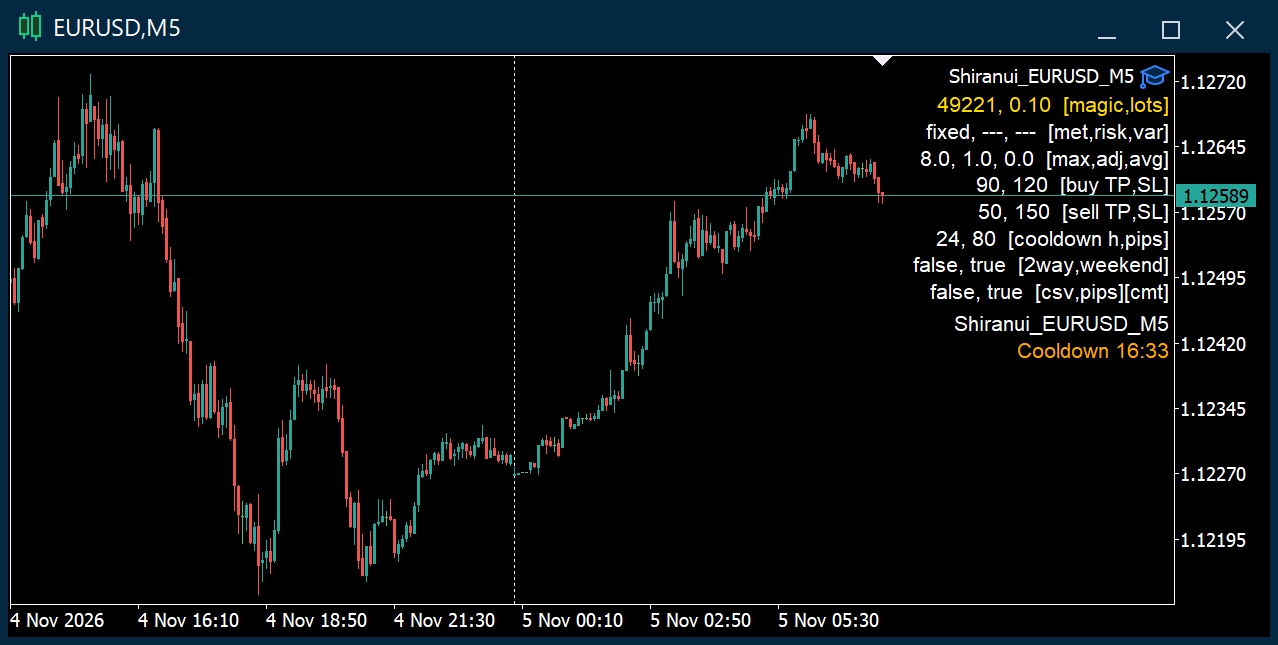
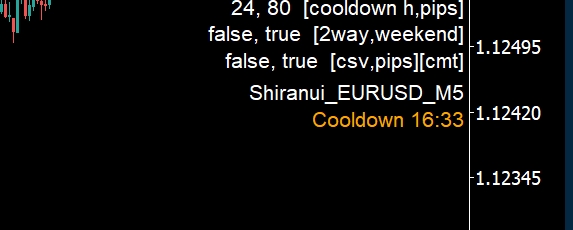
The time is counted from the close time of the losing position. Only the most recent close for the same currency pair and magic number is evaluated. New entries for both buy and sell are stopped. Closing of positions continues as usual.
6. Duplicate Magic Number Alert
If a magic number seems to be duplicated within the same MT4/MT5, an alert window is shown.
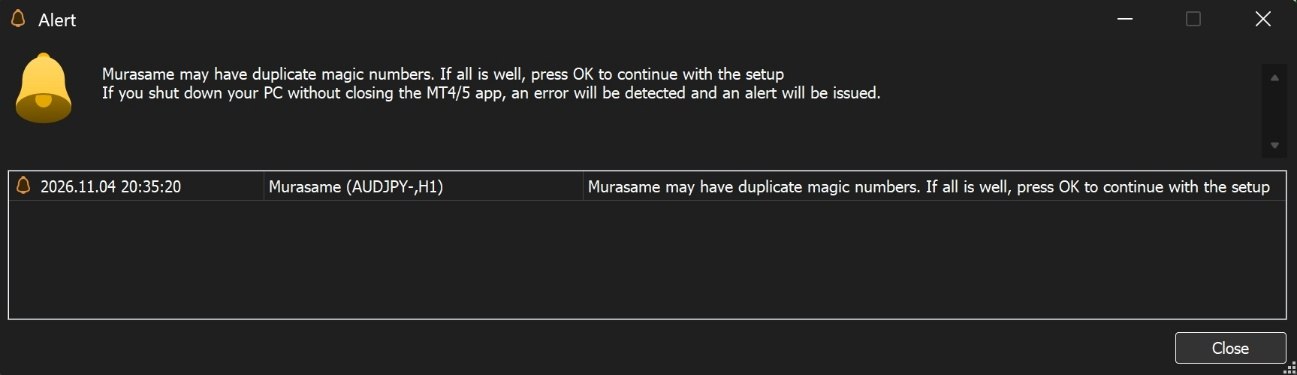
If you shut down the PC without closing the MT4/MT5 terminal, the shutdown processing is not performed, and the alert may appear even when there is no duplicate. It may also appear unexpectedly in other cases. If there is no duplicate, you can ignore it and continue with the setup.
7. Warning for GMT0 Brokers
For a few brokers defined internally among the GMT0 brokers, a warning alert is shown. Other GMT0 brokers are not checked. Please judge for yourself.
For supported GMT, see GMT under “Other Notes.”
8. Automatic Daylight Saving Time Control
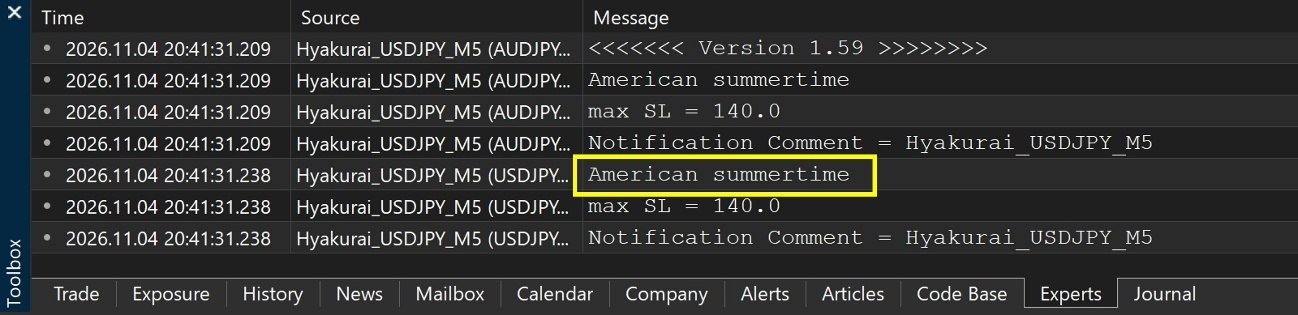
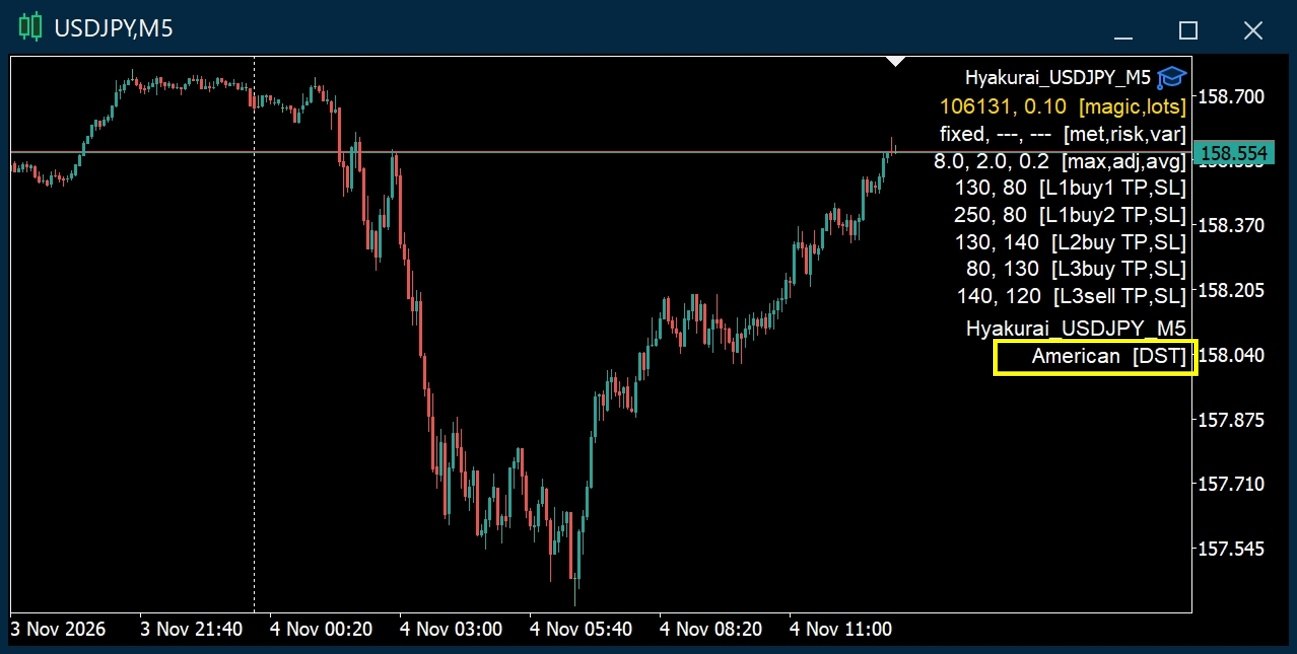
For EAs that need a daylight saving time setting, it is detected automatically for each broker. When the EA is attached, one of the following is shown in the Experts tab.
- No summertime
- American summertime
- European(UK) summertime
It is also shown at the bottom of the chart comment. The detection is based on the brokers I know of. Other brokers may be detected differently. If the display differs from your broker's, please let me know.
9. Automatic Spread Measurement
The EA calculates the average spread automatically and sets that average plus a few pips internally as the spread filter value. You no longer need to measure and check the spread every time you attach the EA.
- As parameters, you set the upper limit (Allowed Max Spread) and the margin from the average (Allowed range from average spread).
- It also works in backtests. You can optimize the spread-related parameters with TDS variable spreads or MT5 real ticks.
- The average excludes the 0:00 hour of server time. If the EA keeps running without a restart, it averages up to one month. The accumulated data is reset when the terminal restarts and when the month changes.
- Nothing is measured while the chart is not moving.
10. Trade History Lines and Pips Display
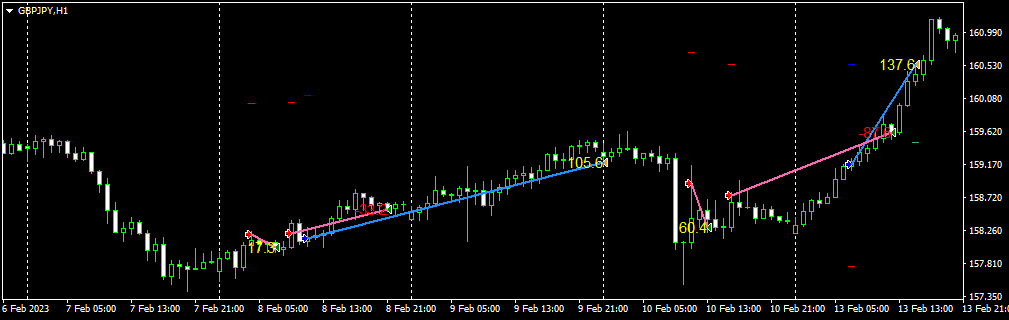
Shows the trade history visually on the chart. It is displayed even if you change the timeframe. When not needed, switch it ON/OFF in the parameters. It shows the line from entry to exit and the pips gained.
MT4 can also display it in backtests. In MT5, it works in backtests only in visual mode.
11. Tester Display
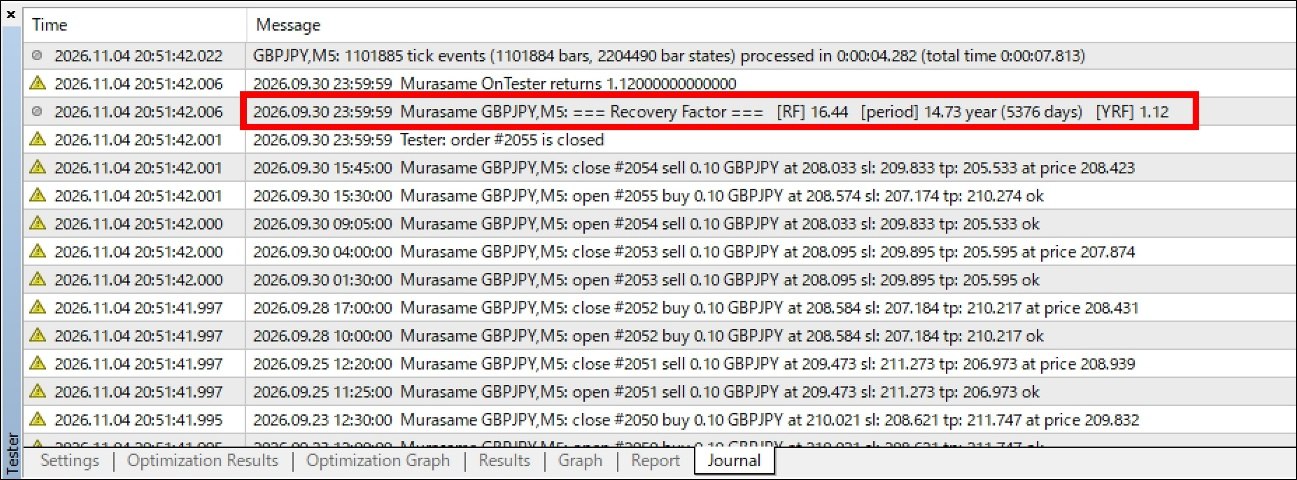
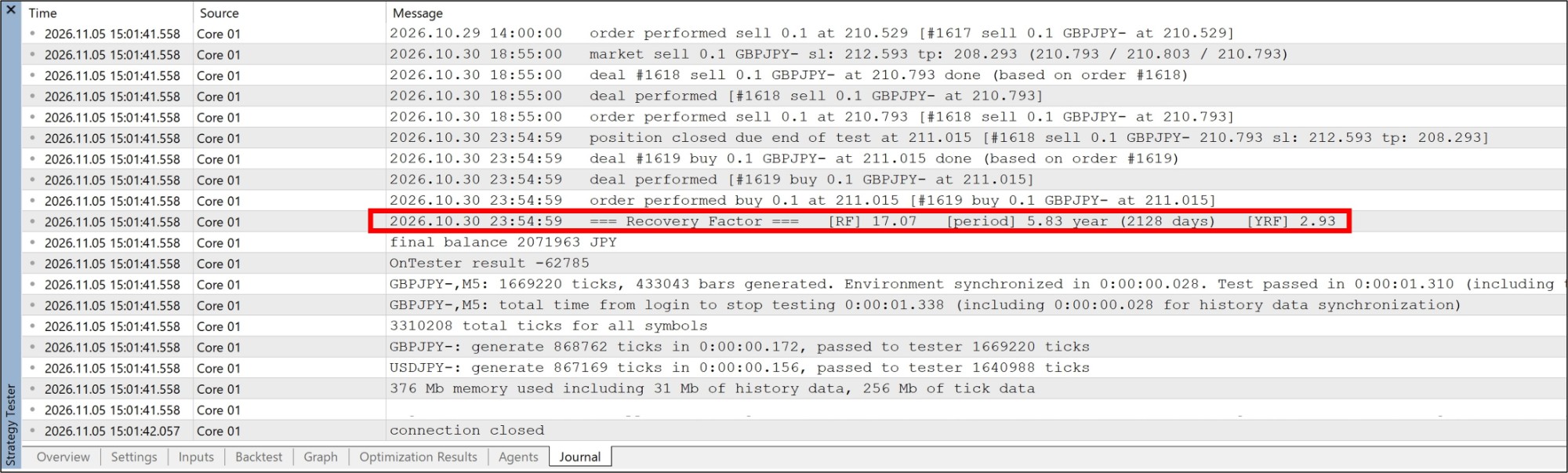
During backtests, the annualized recovery factor (YRF) is displayed. It is one of the metrics I refer to in development.
YRF = Profit ÷ Drawdown ÷ Years
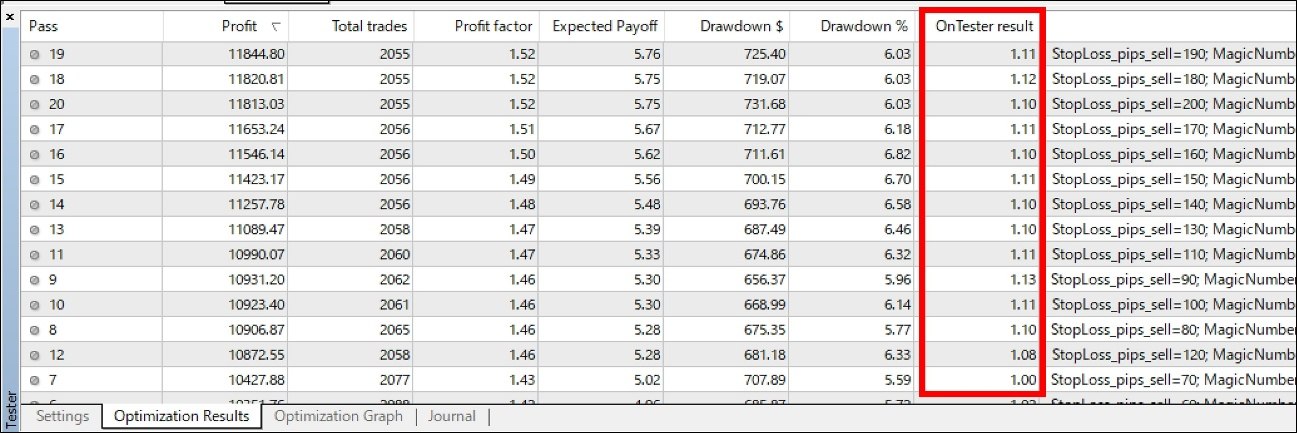
- MT4: Shown in the “Journal” tab after a backtest. During optimization, it is also shown in the OnTester column.
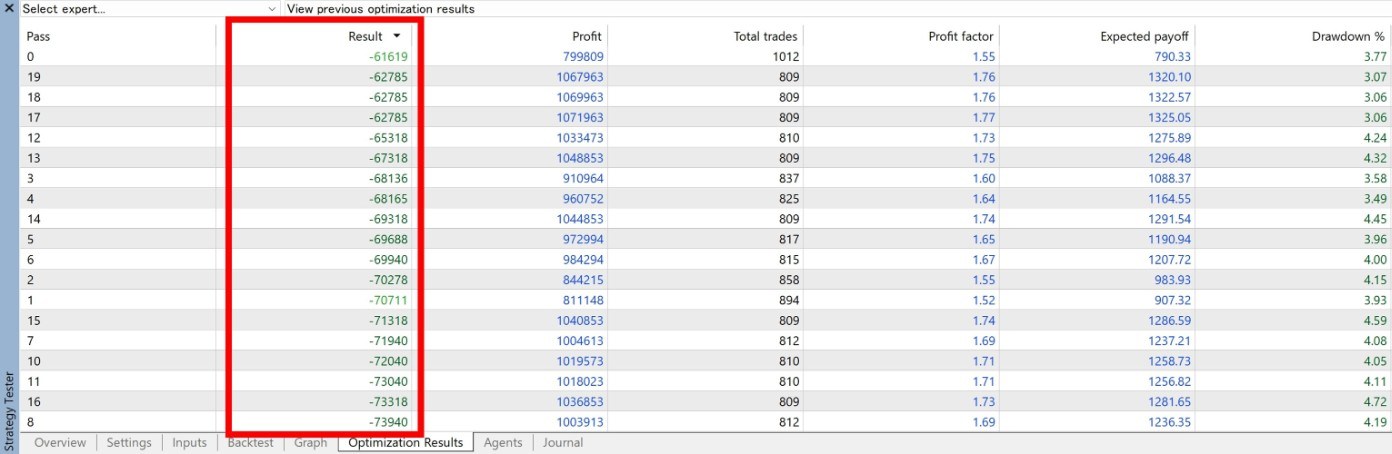
- MT5: YRF is shown in the “Journal” tab after a backtest. In the optimization results, the maximum drawdown is shown in the result column.
12. Trade Information Log (CSV Output)
Information about each trade can be recorded in a CSV file. Switch it on in the parameters. Output makes processing somewhat heavier.
| Ticket | Order Time | Hour | Minute | Day of Week | Order Type | Order Price | Fill Price | Allowed Spread(pips) | Average Spread(pips) | Fill Spread(pips) | Gap(pips) | Slippage(pips) | Latency(ms) | Runtime(ms) | Order Retries | Profit/Loss(pips) | Max Floating Profit(pips) | Max Floating Loss(pips) | Commission | Swap | Gross P/L | Net P/L | Hold Time | Lot Size | Symbol | Timeframe | EA Name | Version | Magic Number |
|---|---|---|---|---|---|---|---|---|---|---|---|---|---|---|---|---|---|---|---|---|---|---|---|---|---|---|---|---|---|
| 2 | 2021.01.06 02:00:00 | 2 | 0 | Wed | Buy | 139.933 | 139.933 | 3.8 | 0.8 | 0.6 | 0.6 | 0.0 | 0 | 0 | 1 | --- | --- | --- | --- | --- | --- | --- | --- | 0.1 | GBPJPY- | M5 | Murasame | 6.4 | 852431095 |
| 3 | 2021.01.06 06:25:00 | 6 | 25 | Wed | Sell | 139.926 | 139.926 | 3.9 | 0.9 | 0.7 | 0.0 | 0.0 | 0 | 0 | 1 | --- | --- | --- | --- | --- | --- | --- | --- | 0.1 | GBPJPY- | M5 | Murasame | 6.4 | 852431095 |
| 3 | 2021.01.06 11:00:00 | 11 | 0 | Wed | Close | 140.1 | 140.1 | 3.9 | 0.9 | 0.7 | -0.7 | 0.0 | 0 | 0 | 1 | -17.4 | 8.5 | -45.2 | 0.0 | 0.0 | -16.92 | -16.92 | 4:35:00 | 0.1 | GBPJPY- | M5 | Murasame | 6.4 | 852431095 |
| 2 | 2021.01.08 09:04:58 | 9 | 4 | Fri | TP | 141.099 | 141.099 | 3.9 | 0.9 | 0.9 | 0.0 | 0.0 | 0 | 0 | 1 | 116.6 | 116.7 | -16.2 | 0.0 | 2.69 | 112.19 | 114.88 | 55:04:58 | 0.1 | GBPJPY- | M5 | Murasame | 6.4 | 852431095 |
| 6 | 2021.01.19 01:00:00 | 1 | 0 | Tue | Buy | 140.835 | 140.835 | 3.9 | 0.9 | 2.8 | 2.8 | 0.0 | 0 | 0 | 1 | --- | --- | --- | --- | --- | --- | --- | --- | 0.1 | GBPJPY- | M5 | Murasame | 6.4 | 852431095 |
| 6 | 2021.01.20 10:34:59 | 10 | 34 | Wed | TP | 141.884 | 141.884 | 3.9 | 0.9 | 0.7 | 0.0 | 0.0 | 0 | 0 | 1 | 104.9 | 106.3 | -5.4 | 0.0 | 0.67 | 101.06 | 101.73 | 33:34:59 | 0.1 | GBPJPY- | M5 | Murasame | 6.4 | 852431095 |
| 8 | 2021.01.21 01:10:00 | 1 | 10 | Thu | Sell | 141.456 | 141.456 | 3.9 | 0.9 | 2.1 | -0.1 | 0.0 | 0 | 0 | 1 | --- | --- | --- | --- | --- | --- | --- | --- | 0.1 | GBPJPY- | M5 | Murasame | 6.4 | 852431095 |
| 8 | 2021.01.21 06:20:00 | 6 | 20 | Thu | Close | 141.561 | 141.561 | 3.9 | 0.9 | 1.1 | -1.1 | 0.0 | 0 | 0 | 1 | -10.5 | 0.4 | -26.7 | 0.0 | 0.0 | -10.15 | -10.15 | 5:10:00 | 0.1 | GBPJPY- | M5 | Murasame | 6.4 | 852431095 |
| Location | Live/demo trading: the Files folder inside the MQL4 or MQL5 folder Backtest (MT4): tester\files inside the MT4 data folder Backtest (MT5): MQL5\Files inside the tester's own folder (example: MetaQuotes\Tester\(ID)\Agent-127.0.0.1-(port number)\MQL5\Files) |
|---|---|
| File name | EA name_account number_TradeLog.csv (common to MT4/MT5; a separate file for each EA) |
| Delimiter | Tab-delimited |
| Columns | Ticket / Order Time / Hour / Minute / Day of Week / Order Type / Order Price / Fill Price / Allowed Spread(pips) / Average Spread(pips) / Fill Spread(pips) / Gap(pips) / Slippage(pips) / Latency(ms) / Runtime(ms) / Order Retries / Profit/Loss(pips) / Max Floating Profit(pips) / Max Floating Loss(pips) / Commission / Swap / Gross P/L / Net P/L / Hold Time / Lot Size / Symbol / Timeframe / EA Name / Version / Magic Number |
- The MT4 data folder can be opened from the menu: File → Open Data Folder.
- The tester's own folder in MT5 has an ID and a port number that vary by environment. If you cannot find it, search the MetaQuotes\Tester folder for _TradeLog.csv.
- Order Type is recorded separately as buy / sell / Close / TP / SL.
- TP/SL may be counted twice.
Built-in Logic and Techniques
| Name | Description |
|---|---|
| No new entries during the 0:00 hour of server time | New entries are, in principle, not made during the 0:00 hour, when spreads tend to widen. Depending on the logic, some strategies close positions during this hour and others do not. |
| Exit spread filter | A spread filter is also applied to exits, so that positions are less likely to be closed when the spread is wide in the early morning. However, it cannot control SL hits and does not apply to them. Some EAs do not have it because of the nature of their logic. |
| Gap filter | No entry when the difference between the previous bar's close and the current price is above a set value. The value is set for each EA. Many strategies judge by the previous bar's close, so an execution price far from it is a disadvantage; this filter is meant to limit that. It also helps prevent trouble where the price jumps and the order fills at a gapped price. It does not apply to exits. You can check the gap at each trade in the CSV output. |
| Prevention of jump-price fills | In the past, there were cases where the price jumped right after entry and hit the SL. This seems to have happened while the price was showing an abnormal value. A spread filter could not prevent it, and neither could the timing of placing the SL or the slippage setting. A method that may prevent it is built into every EA that can include it. |
| Year-end and New Year control | From around December 20 (it varies by EA) until January 3 of the next year, no new entries are made and only exits are performed. If you want to close positions earlier during this period, do it manually. |
| Margin and trading-permission check | Prevents sending orders with a lot size that exceeds your margin, or while trading is not permitted in MT4/MT5. This avoids continually sending useless communication to the server because of order errors. |
| AMPAC (Anti Miss Positioning Auto Control) | A technology I developed to improve order execution. In MT4/MT5, orders can be skipped because quotes arrive late due to communication delays, or because EA processing is congested. My own repeat-order logic and lightweight processing compensate for this and improve execution. |
| Magnet coding | A coding technique I developed for MT4 to make the EA work correctly in live trading. MT4 sometimes does not behave as coded, and a filter that works in backtests may not work in live trading. This is one way to avoid that. It is not perfect and some differences may remain, but the gap between backtests and live trading over the same period tends to be smaller than in EAs made before 2024. |
Other Notes
GMT
My EAs rely heavily on daily bars, so they only work with brokers on GMT+2 in winter / GMT+3 in summer that have five daily bars a week. With any other GMT, there are six daily bars, the calculations between the daily and 4-hour bars change, and the logic does not hold.
Number of bars displayed on the chart
Most EAs need 1,000 bars or more. The required number of bars is written in the brief specification shown in the “Common” tab (MT4: “About” tab) when the EA is attached. Set it to at least that number.
Attaching on weekends
On weekends the chart is not moving, so the chart comment may not appear in MT5 after attaching the EA. In that case, press “OK” on the parameters screen again, and it may appear.
Notes and Disclaimer
- Each feature may not be included, or may be worded differently, depending on the EA and version.
- The support features and chart comment are only aids. They are not guaranteed to work accurately.
- I do my best, but bugs may be found. If you find one, I would appreciate it if you let me know via a comment on the relevant EA page on MQL5 or a private message to me.